
In Back Office - click Core Expense -> Reference -> Reference C-C -> Claimant>
By clicking the blue question mark to the right of claimant, it will bring up a list of employees
that are currently in Core Expense>

Click the red X at the top left hand of the screen>

This will cause the blue question mark to change to the second one and when clicked, it will show a list of employees who are in Core Pay but not currently in Core Expense>

Search for your employee by name and once found click 'OK’>
Press the tab button on your keyboard to bring all their information in>
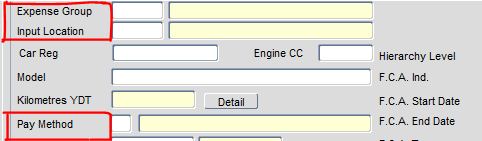
Enter expense group and location code, you can find this info by clicking the large blue question mark>

Put CT in pay method>
Press the yellow save button to save changes made>

You will see a confirmation message at the bottom left of the screen after saving.
The employee is now in Core Expense.